

It cycles through these 80 images:

Occasionally, it will generate a montage of several images to display instead of a single picture. It seems to be a bit clever about it, not just selecting random parts from several images, but identifying objects (usually a starship) from the pictures, and merging them. You'll see what I mean if you try it.
Setting it up should only take a couple of minutes.
For Windows 11:
Download the following .zip file (follow link and click Download button)

Move it from the downloads folder to a convenient location on your C: drive, e.g. C:\Starships
Right-click the .zip file and select "Extract All..."
Click "Extract", This will create a sub-folder named st_wallpapers which contains the image files
Right-click the "Start" icon on the Taskbar and select "Settings"
Click "Personalisation", then click "Lock screen"
Select the "Slideshow" option from the "Personalise your lock screen" button
Click the "Browse" button and navigate to and select the st_wallpapers folder
Make any changes you like to the other options, this is what mine look like
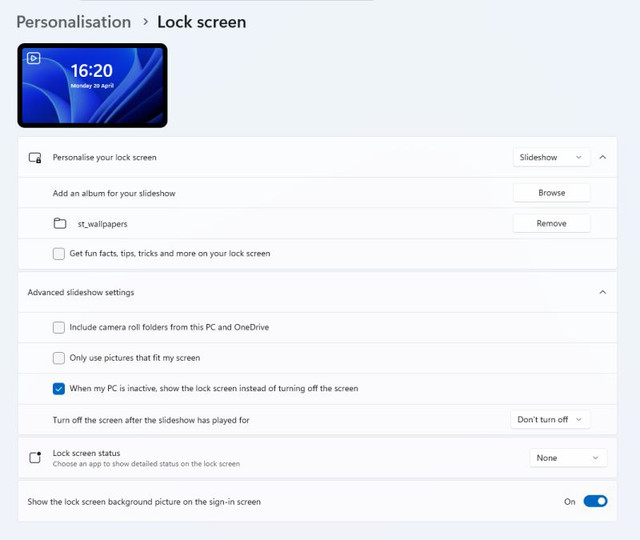
You may have to restart your PC before it starts to work
Once you have got it working, you can delete the .zip file
Occasionally, it will generate a montage of several images to display instead of a single picture. It seems to be a bit clever about it, not just selecting random parts from several images, but identifying objects (usually a starship) from the pictures, and merging them. You'll see what I mean if you try it.
Setting it up should only take a couple of minutes.
For Windows 11:
Download the following .zip file (follow link and click Download button)
st_wallpapers
MediaFire is a simple to use free service that lets you put all your photos, documents, music, and video in a single place so you can access them anywhere and share them everywhere.
www.mediafire.com
Move it from the downloads folder to a convenient location on your C: drive, e.g. C:\Starships
Right-click the .zip file and select "Extract All..."
Click "Extract", This will create a sub-folder named st_wallpapers which contains the image files
Right-click the "Start" icon on the Taskbar and select "Settings"
Click "Personalisation", then click "Lock screen"
Select the "Slideshow" option from the "Personalise your lock screen" button
Click the "Browse" button and navigate to and select the st_wallpapers folder
Make any changes you like to the other options, this is what mine look like
You may have to restart your PC before it starts to work
Once you have got it working, you can delete the .zip file


