• Welcome! The TrekBBS is the number one place to chat about Star Trek with like-minded fans.
    If you are not already a member then please register an account and join in the discussion!

Problem with Wikipedia

Australis

Writer - Australis
Admiral
These last few days, I've had an odd problem with Wikipedia.

First thing, the search button (magnifying glass) isn't working. When I click on it, it highlights but it doesn't do anything. I have to search by entering a term into the browser which either takes me to the relevant article or a bunch of options.

Second thing, instead of appearing down the side of the article, the main menu is above the article, taking up a lot of space. Looks weird.

I'm guessing there's an issue with the hypertext formatting, or whatever the kids use these days, but I din't know how to fix it. Restarting the browser (FFox) makes no difference, nor rebooting the machine (laptop).

Anyone have any suggestions?

TIA.
 
Dumb question?

Does it work in another browser, ie Edge or Chrome?

1) Try deleting cookies from the browser. Restart and see if it works

2) Go to User\AppData\Roaming\Mozilla\Firefox\Profiles\LongProfileName\Storage\Default

where User is your windows UserName, and LongProfileName is the string of characters and numbers that Mozilla use to define your Firefox profile

You might have to enable hidden files in File Explorer to see the AppData directory.

Once there, delete "https+++www.wikipedia.org"

Restart browser.
 
Update!

The problem returned. But then lines started appearing across the monitor before it faded into a grey haze. It was deader than dead. I'm guessing the drivers couldn't work properly as it was breaking down.

So I resolved to go out first thing and my second call was a 2nd hand IT place, had no joy, but as I was leaving...
"[Australis]!" It was a guy I knew, hadn't seen him in about 8 years, he worked there. He asked why I was there, told him, he said, "Hang on a minute." They also had an ewaste place next door. He rummaged around, found a monitor, tested it, didn't work. Found a TV with a HDMI socket, tested, worked fine. Said to the guy in charge, "Do me old mate a solid." The guy said, "$30". Pretty clear picture, 1.5 times bigger than the previous one, I'm stoked! I was prepared $50-80, though I couldn't really afford it, so I'm a happy guy! Thing was, if I had called in when I was going to, I would have missed me old mate.

Thank you, Universe! You came through!
 
Another update. Things still weren't going right. It's an old laptop now, about seven years old, and the only updating that had happened was when it updated itself from Win10 to Win11, three years ago. Very laggy, very slow, tendency to crash. So I bit the bullet and did a partial format. Dell has some good onboard tools to reformat the system, and the reformat is halfway to a factory reset. Wiped all apps, some data, but I had fortunately found an old external drive which took the bulk of my stuff. It took the best part of 2 days to do the format and software reinstall, but it's running so much better now.

Still the odd problem. Leave FB open and unattended for half an hour, it tends to freeze the browser (FFox) and the only solution is a hard reboot. Apps and browser sometimes randomly lag. But compared to where it was, it's so much better.

If I strike too many more problems, I'll do a full factory reset and see how that goes.
 
Last edited:
Yet another update. Wow, it is running SO much better now! After the first partial restore, a whole bunch of updates ran over the following week and each time it got a little faster and more stable, and now seems close to original speed.

Just one hiccup. Leave FB open in FFox for half an hour, and it locks everything up so hard it needs a hard reboot, but everything else is fine. After some thought, I opened MSEdge and opened just FB. Man it is even faster there! I left it open there overnight and it's still fast. So I have Edge open just for FB, and FFox for everything else. It's all so good now. All I have to do now is find a copy of Office2003 and install just Word, which doesn't ask for a product key (seemingly regarding it as a glorified Notepad). And before anyone asks, I know Word03 really well, and can't stand the Ribbon in later versions. I will also point out GRRM still uses WordStar, and has a tech on standby just for that.

So far, so good...
 
Yet another update. Wow, it is running SO much better now! After the first partial restore, a whole bunch of updates ran over the following week and each time it got a little faster and more stable, and now seems close to original speed.

Just one hiccup. Leave FB open in FFox for half an hour, and it locks everything up so hard it needs a hard reboot, but everything else is fine. After some thought, I opened MSEdge and opened just FB. Man it is even faster there! I left it open there overnight and it's still fast. So I have Edge open just for FB, and FFox for everything else. It's all so good now. All I have to do now is find a copy of Office2003 and install just Word, which doesn't ask for a product key (seemingly regarding it as a glorified Notepad). And before anyone asks, I know Word03 really well, and can't stand the Ribbon in later versions. I will also point out GRRM still uses WordStar, and has a tech on standby just for that.

So far, so good...

Small warning, Word in Office 2003 doesn't like Windows 11 (The spellcheck's broken). The rest works okay. I found out the hard way when I bought a new desktop to replace my overheating Windows 10 laptop.

So now I've had that laptop repaired so I can use that for spellchecking the documents I write on my desktop.
 
Thanks for that. I don't recall ever having a problem maybe because I installed the FileFormatConverter and associated files, but I shall definitely need to keep an eye on that. Maybe because my laptop was originally Win10 when I bought it, and it upgraded itself 3-4 years later, with no problems that I can recall. Thanks again.
 
OK, a tangent.

When viewing some... uuhhhhh... research material :shifty:... I found Safe Search was on. Logging into my various Google accounts, it's saying something else has control of that. It may be admin, but I'm not sure now how to get into admin login. I would like to turn it off, as it does limit a range of searches, and not just the obvious.

To access it, in each Google acct, I would log into my separate email accts, open a tab into Google, go to the bottom right corner of the screen and select SS.
 
Me again!

Still haven't cracked the Safe Search problem, but it doesn't matter right now.

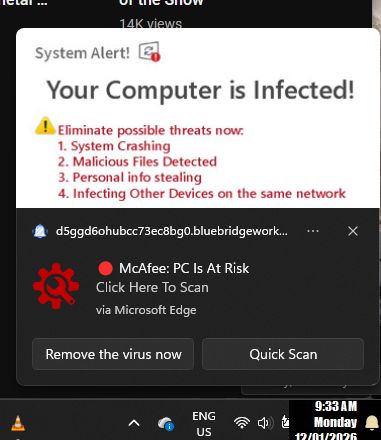
Three years ago I installed AVG, as I was having issues. Seemed to work well enough. But last year I didn't want it anymore and told them, but they took a year's fee out of my acct ($140), and I can't afford that. I asked for a refund but they ignored me, so I changed my acct so they no longer had access. And t almost the exact time the service expired, I began to get these really annoying popup ads in the corner of my main screen, saying I had viruses and whatnot, and I needed to upgrade to McAfee. It has something to do with Edge, AFAIK. It started out with said ads popping up every couple of minutes, then dwindled down to 7-10 min, then every half hour, then irregularly, but they are still coming. MS Defender and Windows Firewall says there is no problem. There's about 6 of them, variations on a theme. Oh look, one just popped up.

spamad01.jpg


Anyone know how to get rid of them? My current thinking is to reinstall Edge, as there are indications it's the problem.
 
I'd try Malwarebytes Adware Cleaner before trying anything more drastic like installing or uninstalling software.


Windows Defender should be enough these days, unless you're actively venturing into aspects of the web (looking for cracked software and the like) where such threats are rife.

Companies like Avast and AVG have long since crossed the line into delivering malware, trying to offer security like a protection racket. It's entirely possible that uninstalling AVG left malicious crap on your machine,
 
Thanks for that. Yeah, AVG, I stopped trusting them. "Nice PC you have here, shame if it got infected..."
 
Tried Malwarebytes, didn't do the job. It removed a download manager and wanted to remove Dell repair tools, which I asked them not to. Was there an extra setting I should have used on the dashboard?
 
That exceeds my experience. Usually with stuff like Malwarebytes, I just run it once, it finds the malware, and gives you the option to remove what looks suspicious.

I also used to use Spybot Search and Destroy

https://en.wikipedia.org/wiki/Spybot_–_Search_&_Destroy

which takes care of malware on Internet software, browsers and mail programs and the like. Again it's a simple matter of install, update definitions, run the scanner, and it goes through your browsers and system hosts file for malware, and gives you the option to remove it and will offer some continuing protection as long as it's installed and running (it runs on Windows Start). In recent iterations the software has become cumbersome and has compatibility issues with commercial antivirus programs. And I haven't installed it on my WIndows 11 desktop. I still have an older version installed on my Win 10 laptop though. Have to remember to update the definitions once a week.
 
So, some news. Neither Malwarebytes or Spybot did anything. BUT...

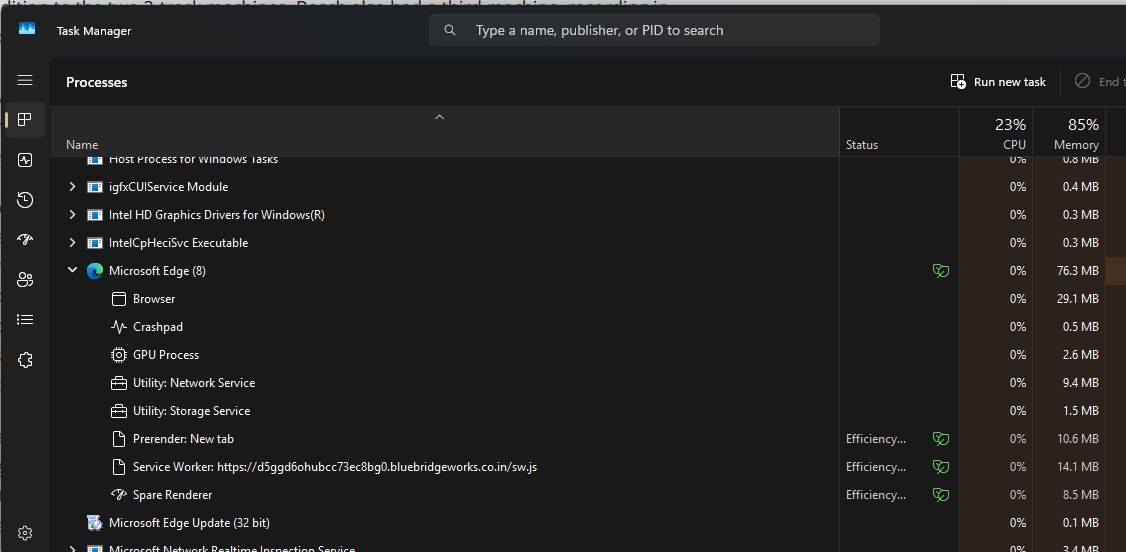
I opened up Task Mngr (because it's a task, right?) and waited. Even when I'm not using Edge, 7 processes are running, but as soon as the ad fires up, an 8th appears!

spamad03.jpg


I'm pretty sure you can guess the intruder. Now do you have any suggestions how to get rid if that, because it seems to be beamed in.
 
I tried typing that address into the search bar to find out how to remove it, but all I got was a heap of copycat malware forum posts obviously written by AI, with a lengthy set of instructions, which I suspect have a step in there to make things worse.

This post I found seems to be a good and simple place to start though

Unwanted notifications (popups) from web browser (desktop)
Notifications which pop up on your screen can be distracting and annoying. Here's how to disable them in the various web browsers (current as of December 2021):

Google Chrome (Version 96+) Enter chrome://settings/content/notifications to open the Notifications settings page in Google Chrome. Remove all non-google.com domains from the Allow section. Toggle the Don't allow sites to send notifications option to on.
Instructions for Version 88 and older: Select Settings → Advanced → Site Settings → Notifications from the main menu, and change "Ask before sending (recommended)" to Blocked.

Mozilla Firefox
Select Tools → Settings → Privacy & Security from the main menu, scroll down to Permissions → Notifications, select Settings, click on "Remove all websites" and then check (select) "Block new requests asking to allow notifications" and click on the Save Changes button..

Microsoft Internet Explorer
(does not support notifications)

Microsoft Edge (Chrome-based, Version 91+)
Go to edge://settings/content/notifications in the address bar and disable Ask before sending (recommended). If there are any entries in the Allow section, click on the menu and select Remove for each one.

Microsoft Edge (pre-2020 legacy versions)
Open Windows Settings app (not Edge's) and go to System → Notifications & Actions, scroll down to Notifications, and set "Get notifications from apps and other senders" to Off.

reddit.com/r/antivirus/comments/1cs1krs/how_to_stop_these_pretend_pop_ups_i_tried/
 
That looks good, I'll try that shortly.

Cheers!

Edit: NVM! It popped up again even though Edge tasks were off. In frustration I right clicked on one ad and it said "Turn off notifications". Guess what? :D
 
Last edited:
If you are not already a member then please register an account and join in the discussion!

Sign up / Register


Back
Top